Keep the music moving.
Play or pause the Now Playing app, skip to the next track, or return to the previous track. The automatic play/pause icon follows playback, so you can see what a press will do.
 MacroPad Companion
YOUR SHORTCUTS. YOUR SETUP. ONE MAC APP.
Give your macro pad the Mac app it deserves. MacroPad Companion brings Mac support to Mountain DisplayPad and a more capable alternative to the MSD-TWO software—with custom actions, scenes, artwork and sharing in one native app.
Companion software for Mountain DisplayPad and MSD-TWO. Hardware not included.
LESS REACHING. MORE DOING.MORE THAN A REPLACEMENT
Mountain DisplayPad has no official Mac support. MSD-TWO has official software, but it leaves plenty of room to do more. MacroPad Companion is an independent app built around what you actually want to do on your Mac—not just a way to reproduce the vendor’s setup screen.
Create separate scenes, choose a browser for each web action, run shortcuts and scripts, fine-tune dial adjustments, and share complete setups with their artwork. Manage multiple connected devices without giving up independent control of each one.
Designed to get out of your way. Configure your controls, close the editor, and get back to what you were doing. MacroPad Companion keeps running quietly in the menu bar, ready when you press a button or turn a dial.
WHAT THE APP DOES
INSIDE THE APP
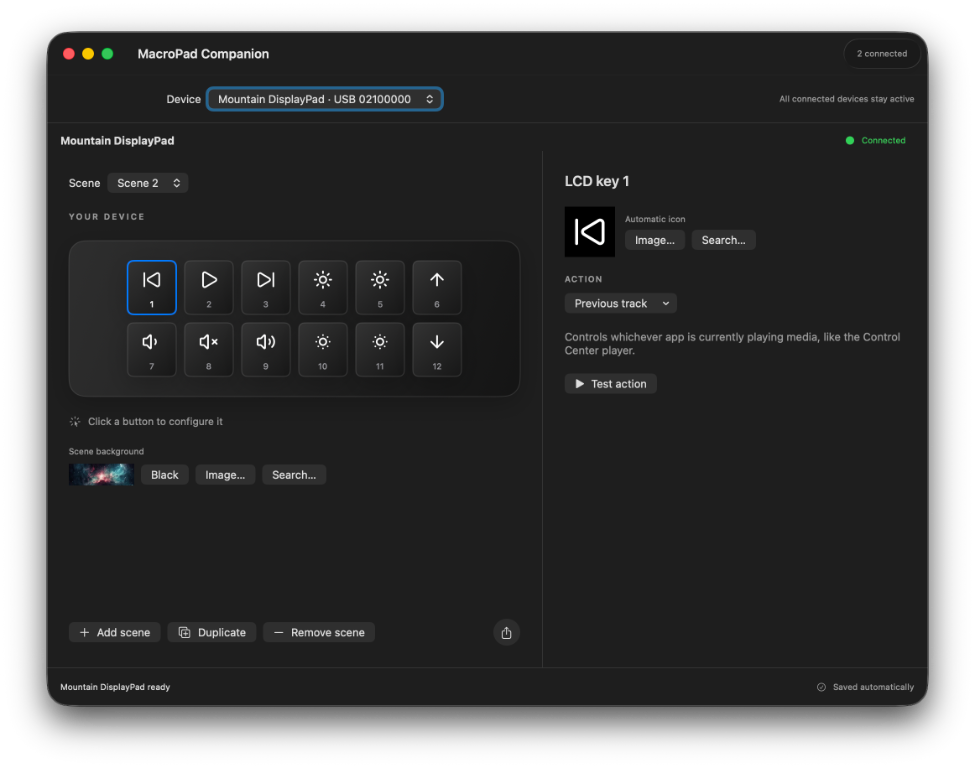
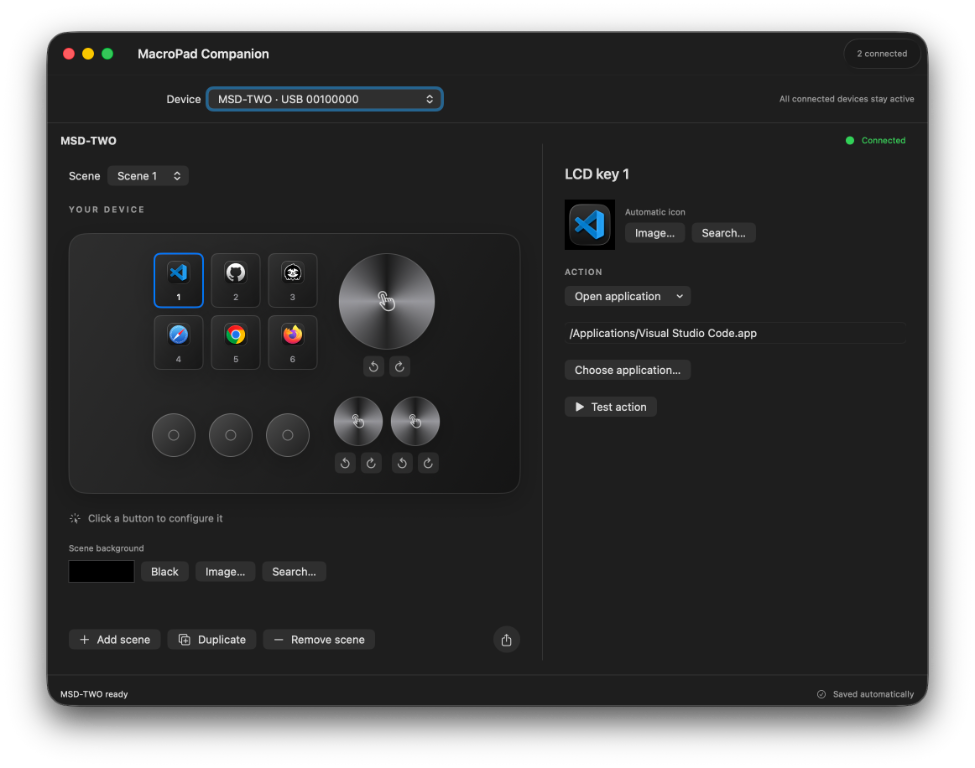
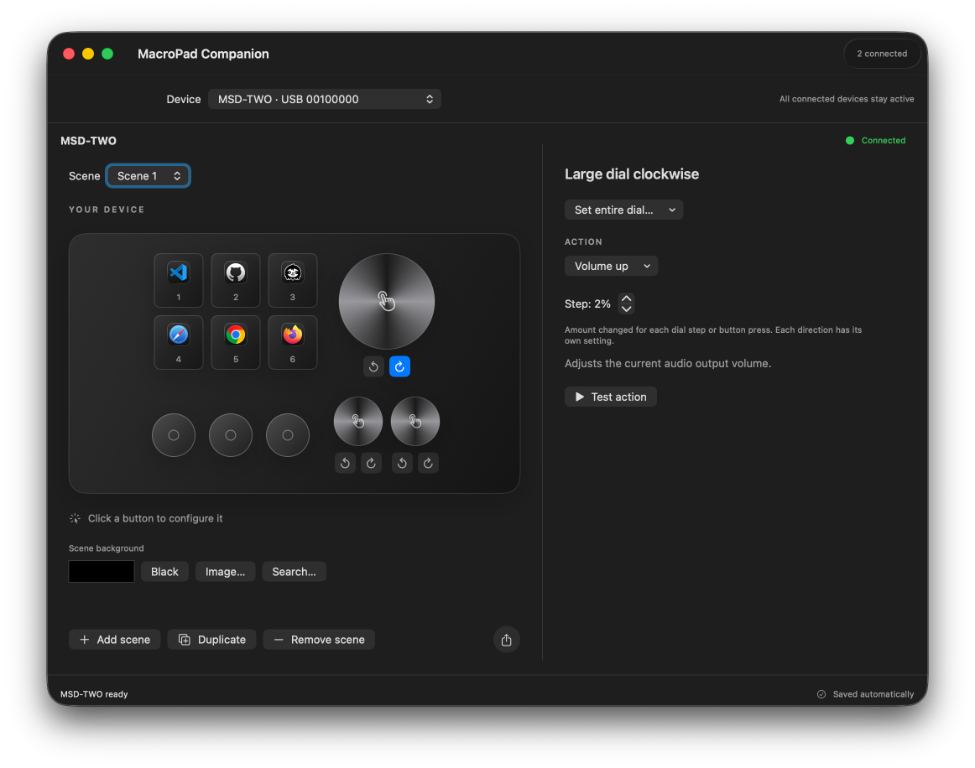
The editor matches your connected device.
Click a control to make it your own.
 View full size ↗
 View full size ↗
 View full size ↗
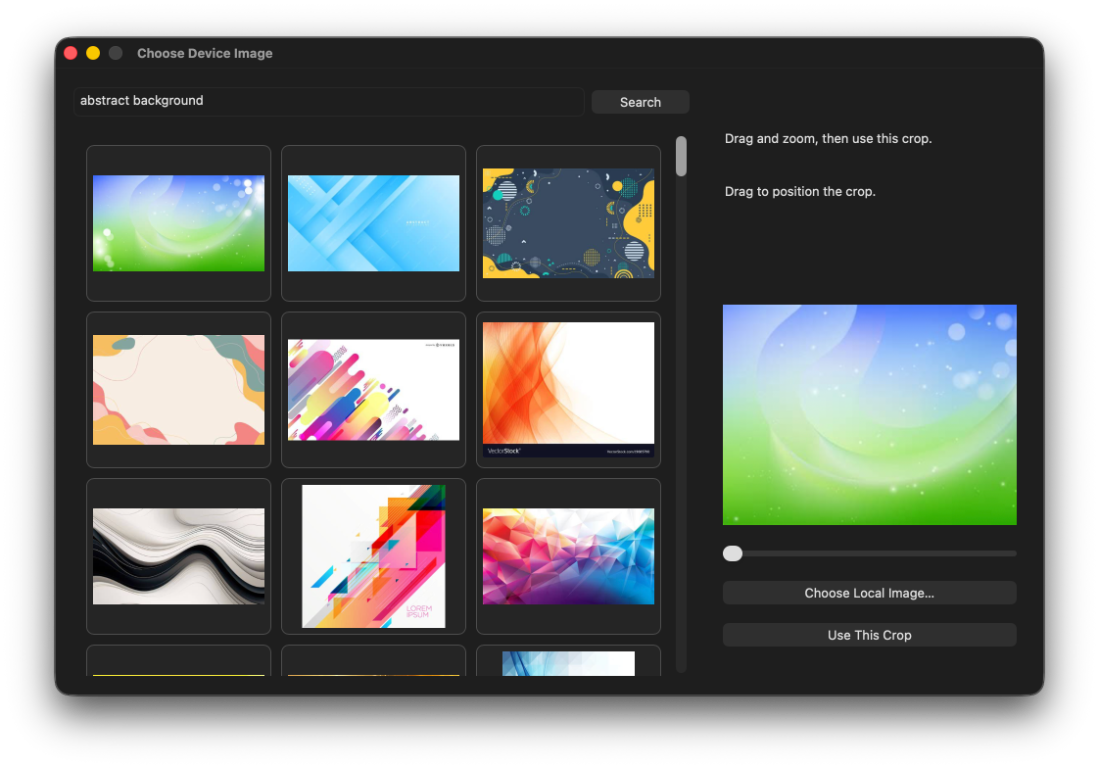 View full size ↗
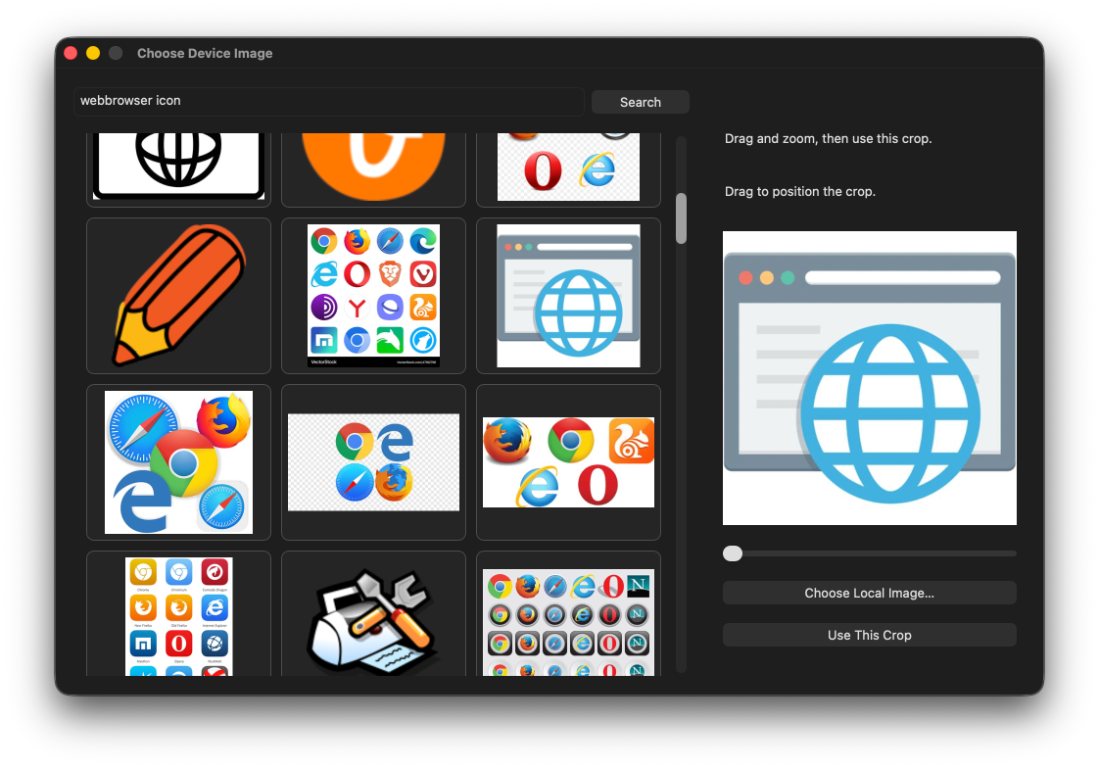 View full size ↗
YOUR PAD. YOUR LOOK.
Built-in Lucide icons sit neatly inside each button. App and folder icons, automatic website artwork, your own images and per-scene backgrounds make the setup yours. Drop apps or images onto controls, or use the image search and crop tools.
Select a button or dial gesture and press Backspace to clear its action and icon. Scene backgrounds stay intact.
Save a favorite scene or your complete device setup, with its icons and backgrounds included. Keep a backup, share it with someone else, or bring it to another Mac.
Drop an exported setup onto the window to import it into a compatible device. Choose Add Scenes to keep what’s already there, or Replace Device Settings to start with the imported setup.
GET THE APP
Keep your setup in a lightweight Mac menu bar app. Configure your supported pad, save your scenes, and get back to what you were doing.
Public alpha · v0.2.1 · macOS 14+ · Intel & Apple Silicon
Includes Calendar and Clock scripts and an HTML AppleScript manual.
Ad-hoc signed. Not notarized by Apple.
Open the disk image and drag MacroPad Companion.app to Applications.
Plug in a Mountain DisplayPad, an MSD-TWO, or both, and open the app.
Choose a device, then a button or dial gesture. Assign an action and try it. Settings save automatically.
FIRST LAUNCH
This alpha is ad-hoc signed and isn’t notarized by Apple. macOS may block the first launch. Only approve a download you trust.
Early software: expect rough edges. Exact LCD wallpaper registration and orientation still need physical calibration; multiple identical pads and hotplug need more hardware testing.
A FEW USEFUL DETAILS
Today: Mountain DisplayPad and Mars Gaming MSD-TWO / HANVON UGEE CS06. Mountain has twelve screen keys. MSD-TWO has six screen keys, three rotary dials and three circular buttons.
Not supported today doesn’t mean not supported tomorrow. More devices may follow, but there’s no promised timeline.
Yes. Selecting a pad in the editor doesn’t stop the others. Each unit has its own scenes, actions, artwork and brightness settings.
Export the current scene or complete device settings from Share settings. Import through that menu, double-click a bundle, or drop it onto the configuration window. Imports must match the device family. Add Scenes keeps current scenes and brightness settings; Replace Device Settings uses the bundle’s configuration. A device without actions, custom icons or backgrounds skips that choice and replaces directly. Apps, folders and scripts referenced by actions must still exist on the receiving Mac.
Keyboard shortcut playback needs Accessibility permission. AppleScript may need Automation permission for the target app. Errors appear in the configuration window.
Yes. Your setup is saved locally and automatically. Export it when you want a backup or a copy to share.
MacroPad Companion needs to be running for your configured actions to work. When you quit, the button icons disappear so the pads don’t look active when they aren’t. Your backgrounds and saved settings stay intact, ready for the next time you open the app.
Visits, pageviews and download requests, using a short-lived random tab token and daily aggregate counts. No cookies, third-party analytics, stored IP addresses or stored user agents. Counts are requests, not unique people or installations.